
Home / Blog / Information Abstraction From Documents With Mistral OCR
Information Abstraction From Documents With Mistral OCR | Working With Financial Documents
Prince Krampah
Python Programmer


One of the major challenges in AI and AI agents is their ability to extract information from documents, especially documents with very complex layouts such as tables and other financial documents. There are various ways that can be used to try to solve this. From experimenting with a variety of methods, I don’t really want to mention any of these packages or services I have tried out, but I got little to no good results when it came to complex document layouts. A few days ago I came across Mistral OCR, I tried it out and it proved very helpful. In this article, we’ll delve into using Mistral’s OCR to extract information from PDFs and images. Let’s take a
look into what Mistral itself has to say about their OCR:
Mistral OCR is an Optical Character Recognition API that sets a new standard in document understanding. Unlike other models, Mistral OCR comprehends each element of documents, media, text, tables, and equations with unprecedented accuracy and cognition. It takes images and PDFs as input and extracts content in an ordered interleaved text and images.
As a result, Mistral OCR is an ideal model to use in combination with a RAG system taking multimodal documents (such as slides or complex PDFs) as input.
Why Mistral OCR?
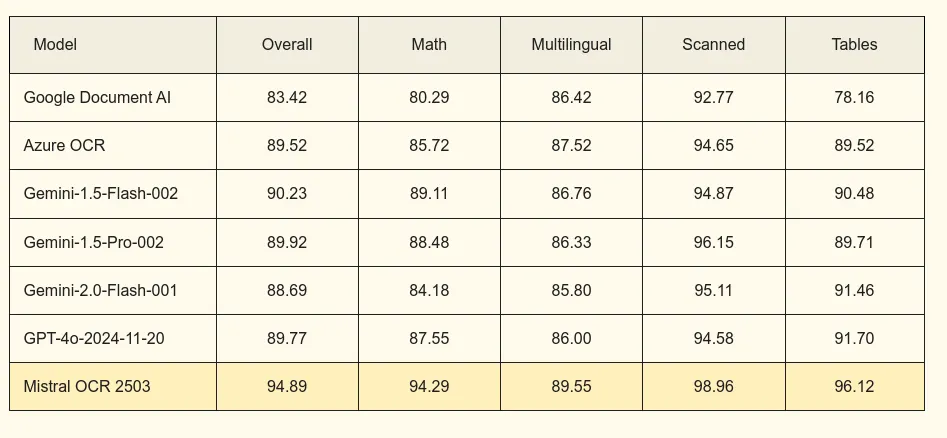
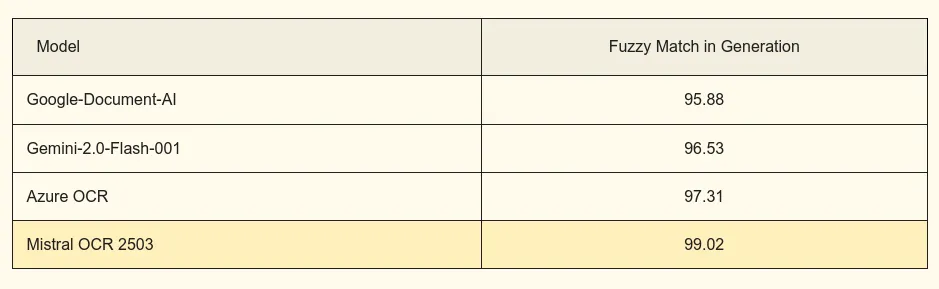
I found some interesting benchmarks on Mistral OCR, let’s take a look.
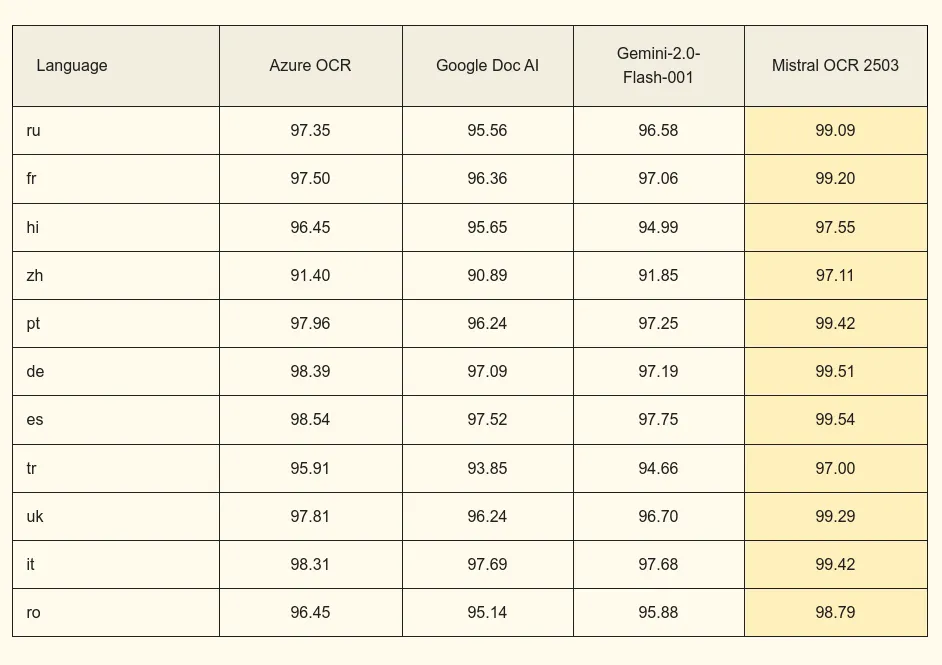
Multilingual Benchmarks
To further emphasize this more on the multilingual aspect, they provided table on their official docs:
 Let’s get started experimenting with this API…
What Is Information Abstraction
Information abstraction refers to the process of simplifying, organizing, and representing complex data or knowledge in a more manageable, structured, and usable form. Throughout history, it’s been a fundamental concept that has allowed humans to:
Distill complex ideas into simpler representations
Create standardized systems for recording and communicating knowledge
Make information more portable, transferable, and accessible
Build layers of knowledge where simpler abstractions support more complex ones
Installation
To get started, we first need to install Mistral OCR. Run the command below to do just that.
Let’s start by creating a Python virtual environment for our project.
python3 -m venv venv
source vevn/bin/activate
pip install mistralai ipykernel python-dotenv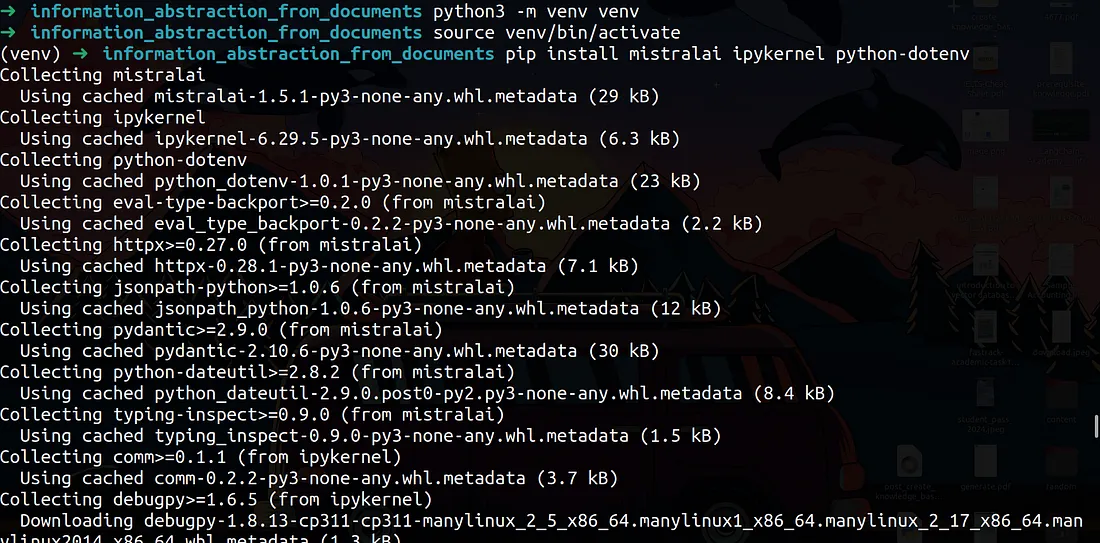
Mistral API Key
Talking of environment variables, we’ll need to have a MistralAI API key to use the API. You can get your API key from:
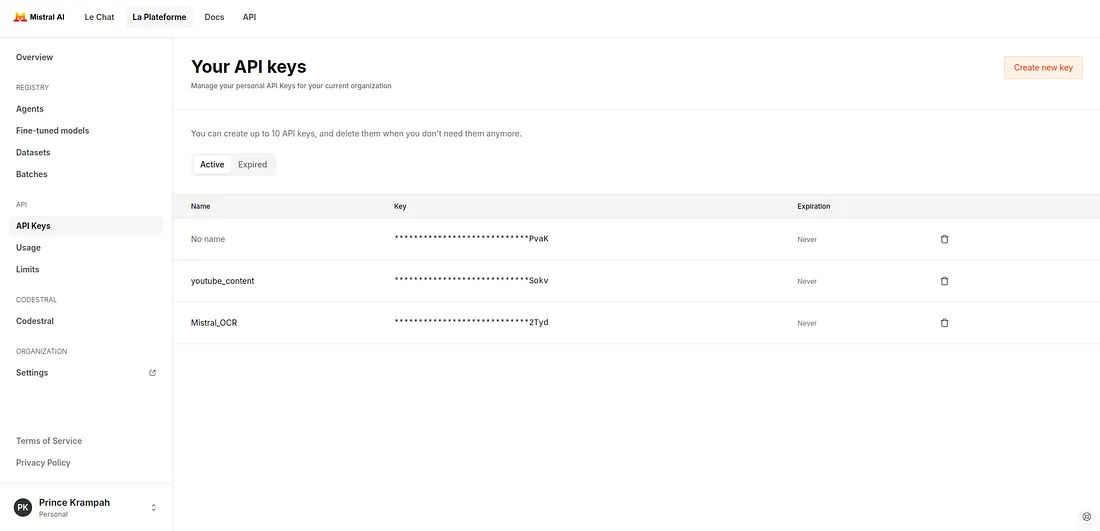 Once you get your API key, go into your project directory and create a file called
 .env . Within this file add the following content, replacing your correct API key.
MISTRAL_API_KEY=xxxxxxxx2TydI also have some PDF file we can use for information extraction. My directory looks like:
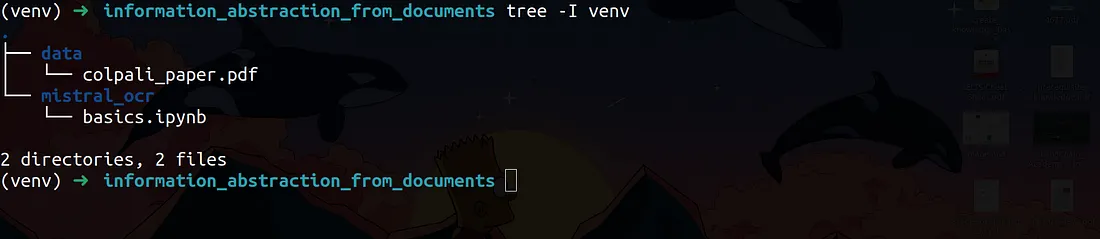
Basic Setup
For the basic setup, I went ahead and created a notebook called basics.ipynb. I have also added a data directory with a PDF in it called colapli_paper.pdf. You can download the ColaPali paper from here.
.webp) Selecting Python Kernel In VSCode
Selecting Python Kernel In VSCode
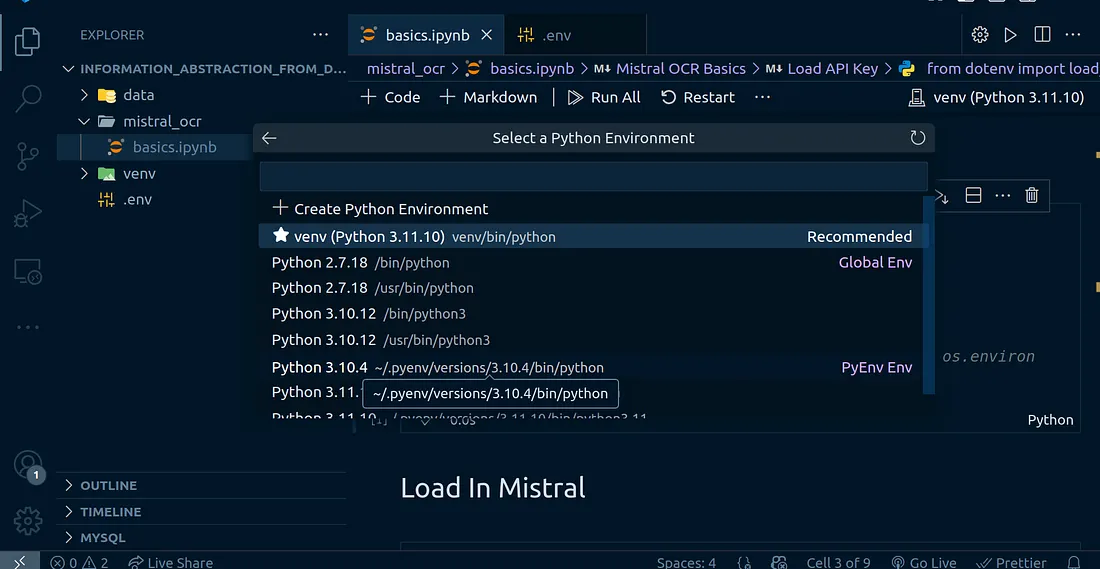
Make sure to select the right Python kernel for your project once VSCode opens the notebook. Navigate to the top right hand corner of your screen and click on the “Select Kernel” button, then select “Python Environments.” You should see the name of the virtual environment we have created.
 Loading Environment Variables
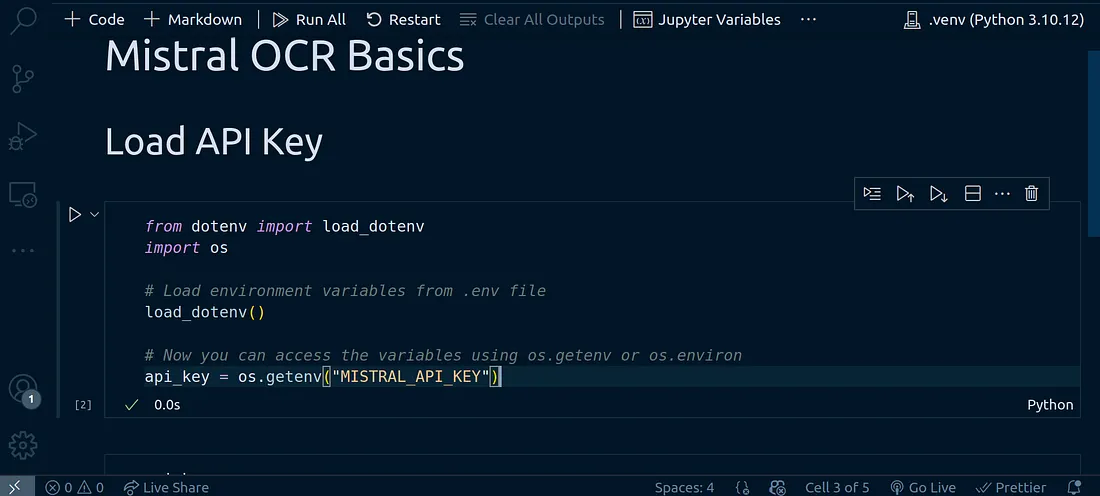
To complete the basic setup, let’s read in our environment variables from the .env file we have created. To do this, use the code below:
from dotenv import load_dotenv
import os
Load environment variables from .env file
load_dotenv()
Now you can access the variables using os.getenv or os.environ
api_key = os.getenv("MISTRAL_API_KEY")
Perform OCR On Document
To perform OCR on the colapali_paper.pdf file I have in my data directory, we'll follow the following approach:
Load In Mistral
Load In Mistral
We need to first import the Mistral class and load in the components.
from mistralai import MistralRead In File
We can now go ahead and read in the file that we will perform the OCR on.
from pathlib import Pathpdf_file = Path("../data/colpali_paper.pdf")
assert pdf_file.is_file()from mistralai import DocumentURLChunk, ImageURLChunk, TextChunk
import json
uploaded_file = client.files.upload(
file={
"file_name": pdf_file.stem,
"content": pdf_file.read_bytes(),
},
purpose="ocr",
)
signed_url = client.files.get_signed_url(file_id=uploaded_file.id, expiry=1)
model_name = "mistral-ocr-latest"
pdf_response = client.ocr.process(document=DocumentURLChunk(document_url=signed_url.url), model=model_name, include_image_base64=True)
The PDF document we are using consists of images. To get the images back, we can set the include_image_base64=True. Running the code above can take a bit of time. The document I am using is about 26 pages, which makes sense it takes time. Unfortunately, this timed out. So I ended up trying setting include_image_base64=False. This helped and the base64 images were not extracted, but it worked faster. You can try out other documents from here.
Once it’s done, we can process the response in JSON format:
response_dict = json.loads(pdf_response.json())
json_string = json.dumps(response_dict, indent=4)print(json_string)I then converted this response into Markdown format, credit to the MistralAI team for the code:
from mistralai.models import OCRResponse
from IPython.display import Markdown, display
def replace_images_in_markdown(markdown_str: str, images_dict: dict) -> str:
for img_name, base64_str in images_dict.items():
markdown_str = markdown_str.replace(f" ", f"
", f" ")
return markdown_str
")
return markdown_str
def get_combined_markdown(ocr_response: OCRResponse) -> str:
markdowns: list[str] = []
for page in pdf_response.pages:
image_data = {}
for img in page.images:
image_data[img.id] = img.image_base64
markdowns.append(replace_images_in_markdown(page.markdown, image_data))
return "\n\n".join(markdowns)
display(Markdown(get_combined_markdown(pdf_response)))
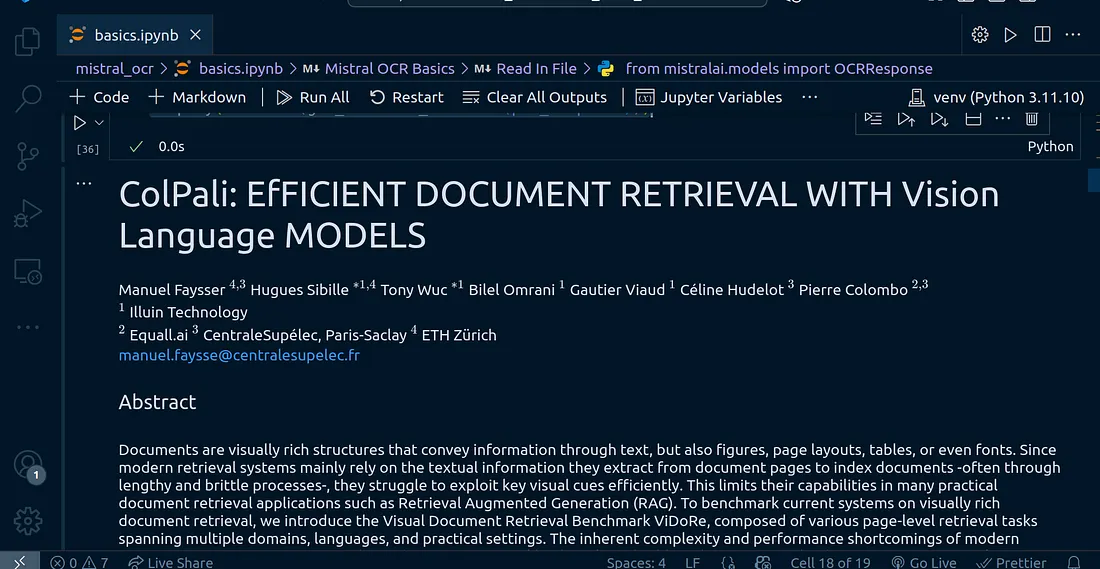
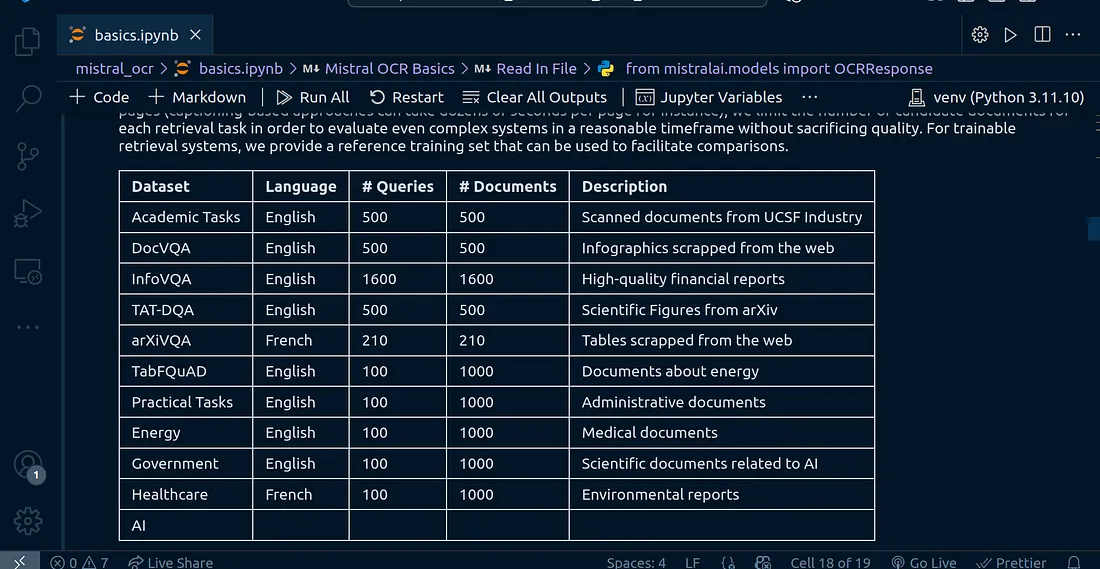
Well, I must say, this is really great output.
I tried it on some other financial document, here is the output:
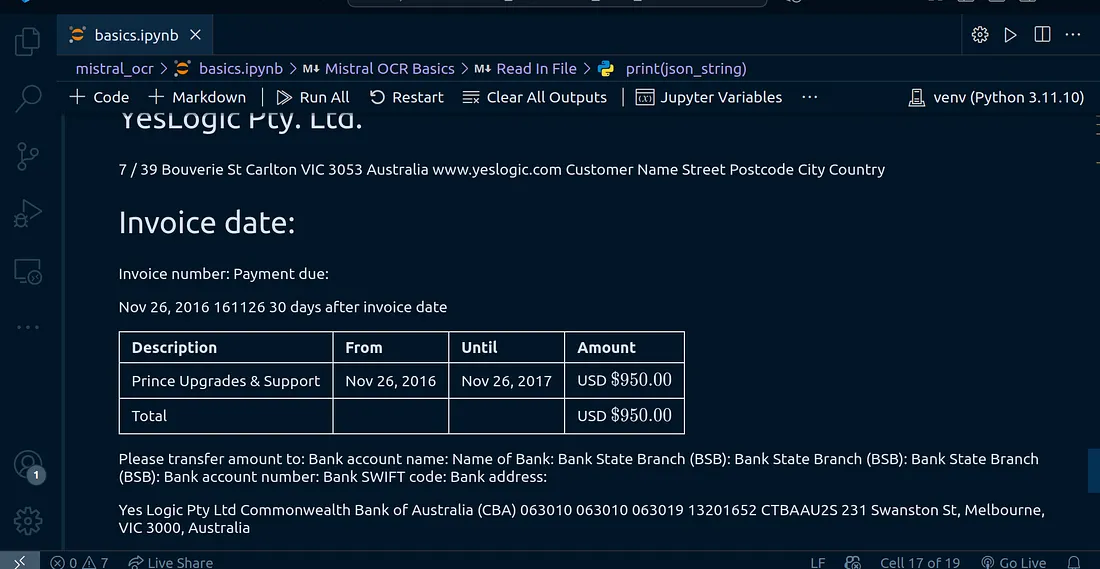
<iframe src="https://drive.google.com/viewerng/viewer?url=https%3A//www.princexml.com/howcome/2016/samples/invoice/index.pdf&embedded=true" allowfullscreen="" frameborder="0" height="780" width="600" title="" class="em g hx ed bd" scrolling="no"></iframe>
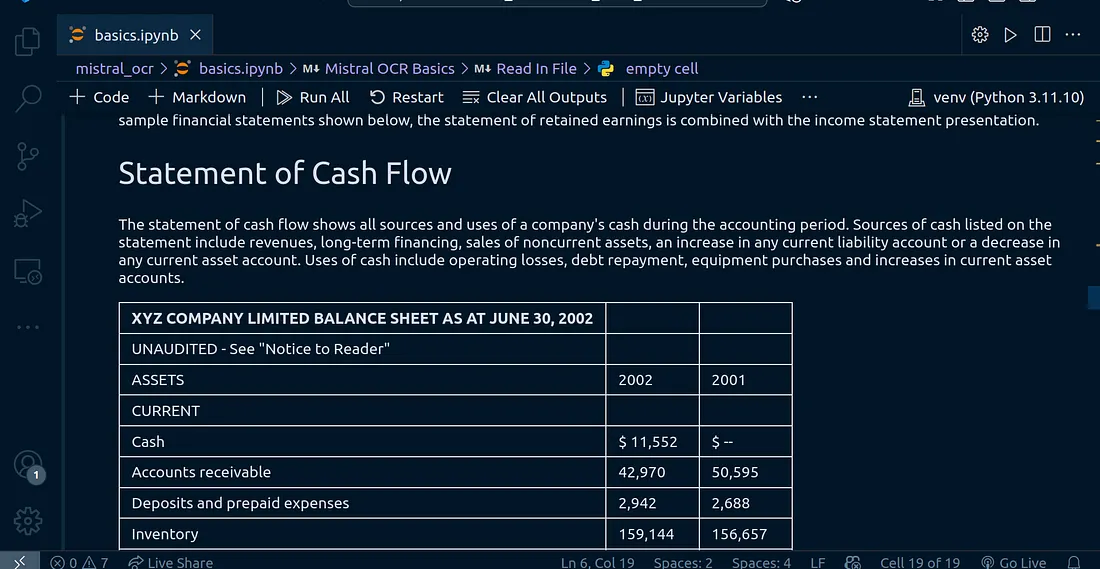
I have tested it against more financial documents and the output is outstanding:
Conclusion
Congratulations for making it this far! In this article we went over building an information extraction program using Mistral’s OCR SDK. With this knowledge you can take things a bit further and learn to work with building a RAG application. Let us know what you have built!
Share Blog




READY TO BEGIN
Build AI Around the Way Your Teams Work
Start with one role, one workflow, and one measurable outcome.
Talk to an Expert